An Introduction to Quarto
This session is a standalone introduction to Quarto, a tool which can be used to turn notebooks into sharable documents and build presentations and websites from live code segments.
Whilst this session is not part of a specific series it will be more accessible once you have an understanding of key concepts as covered in existing code club sessions.
Slides
Use the left ⬅️ and right ➡️ arrow keys to navigate through the slides below. To view in a separate tab/window, follow this link.
Code along requirements
In addition to the slideshow above there will also be some elements which learners may wish to code along with. The demonstration has been run in VS Code enabled with the Quarto extension.
The code base for the demonstration is stored in an SCW repository as it connects to SCW servers, but the information downloaded is a replica of information released by NHS England.
Once downloaded you will need to run the “uv sync” command in a powershell terminal from your local repository folder.
What is Quarto?
“Quarto” is a system for publishing scientific and technical work. The name is a reference to the “Quarto” format of print publishing, where a sheet is printed into 4 sections which can all be printed double sided.
The Quarto system (code not print) allows for multiple code languages to be combined with markdown to allow for users to format their output for readability before converting into one of a number of formats from Word documents and PDFs to Presentations and Websites (For example, this website has been built in Quarto).
In its simplest form Quarto is a standalone command-line interface (CLI) but is easily integrated with integrated development environments (IDEs) such as VS Code, Positron or R-Studio. Given that we have used VS Code throughout the rest of the session.
How do I use Quarto in VS Code?
The easiest way to use Quarto is to install the relevant extension. Go to the extensions tab in VS Code and search for “Quarto”.
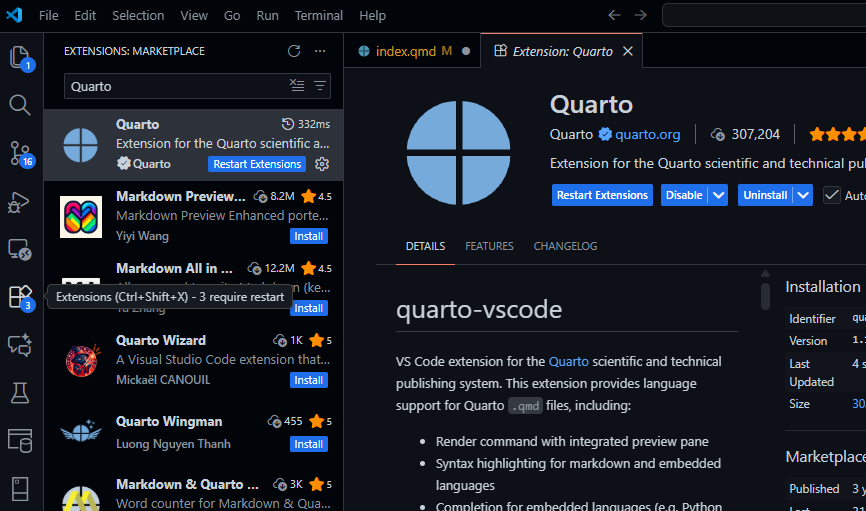
Installing this will enable the quarto extension meaning you can now access commands via the terminal or via the command pallette and search “Quarto” which will bring you to the Quarto commands.
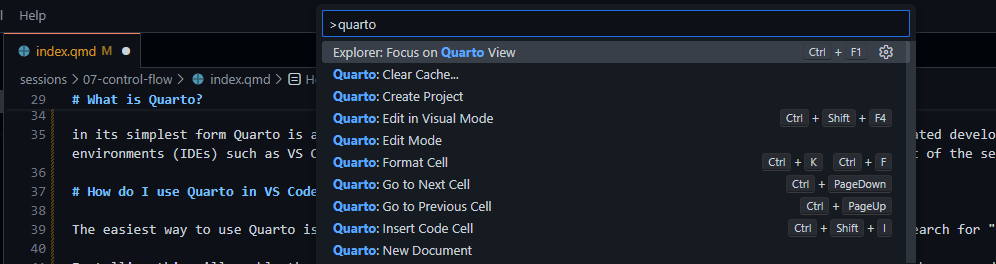
There may be further items required depending on your output requirements but this should enable output into a number of different formats including Word and HTML.
A helpful command line tip: entering the command quarto help will provide a list of common commands that you can use to interact with your quarto documents.
The most commonly used of these will likely be “quarto render –to [format]” (where format is something like “HTML”, “Word”, or “PDF”).